World's leading manufacturer and supplier of horizontal loading- and unloading systems

SMART REMOTE CONTROL

Introducing the ultimate solution for effortless control of your Cargo Floor system. Our user-friendly app empowers you to manage your Cargo Floor remotely, using just a few taps on your smartphone or tablet. Utilizing Bluetooth technology, you can operate your system within the designated range effortlessly.

This app allows you to connect to one receiver at a time while conveniently remembering all the devices you've been linked to in the past, each device can even be personalized with a unique name of your choice. Enhance your experience further by customizing each receiver with its own photo, ensuring it's not just functional but also a reflection of your individuality.

Download the app now and embrace the future of effortless control. Elevate your logistics experience even more today!

Scoll down for the full installation guide. 
Apple store icon

Google play icon

ATTENTION!

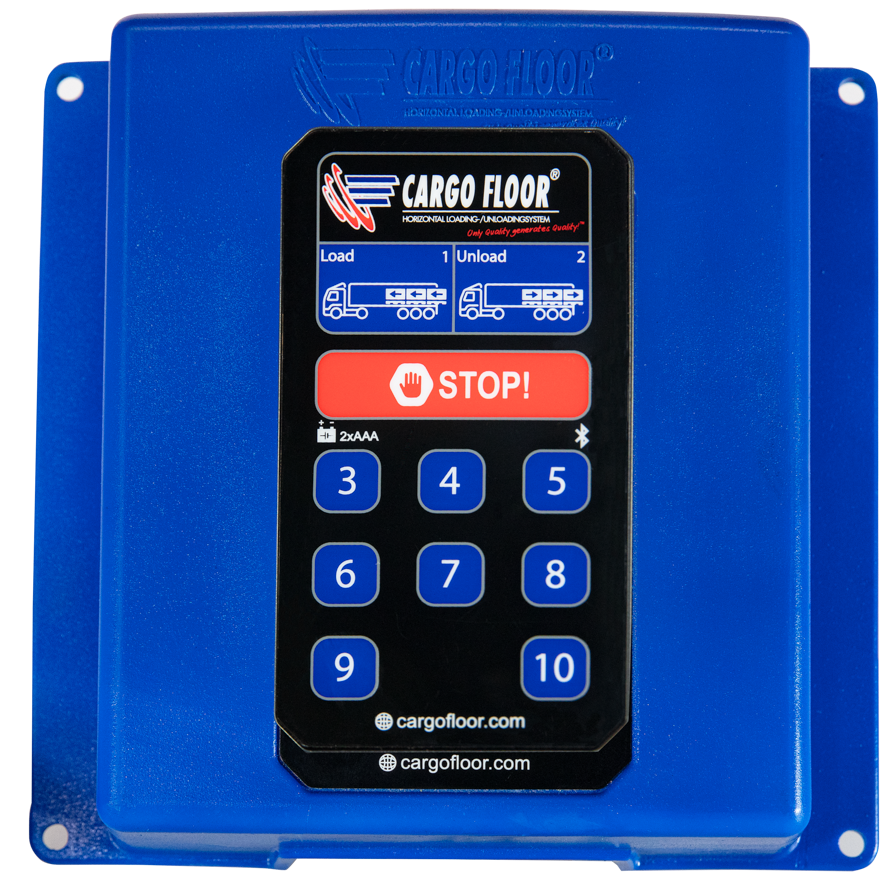
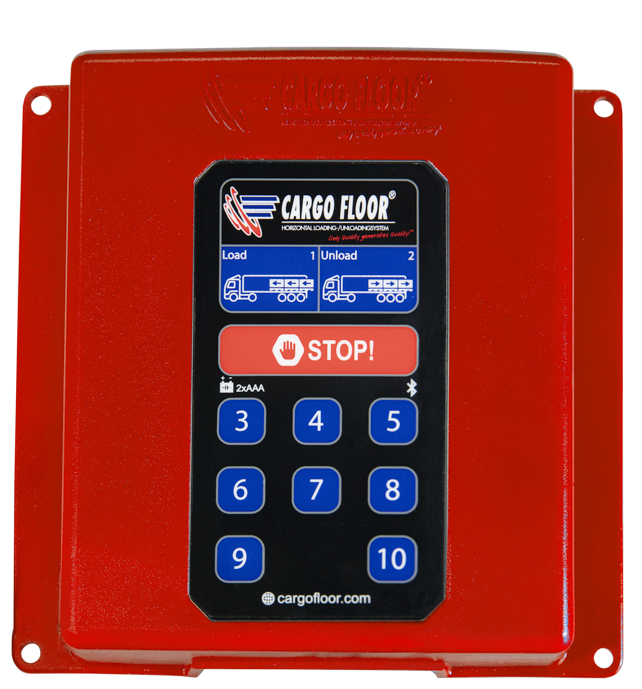
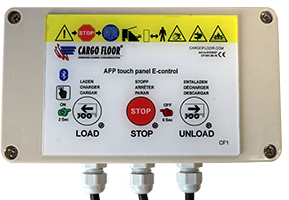
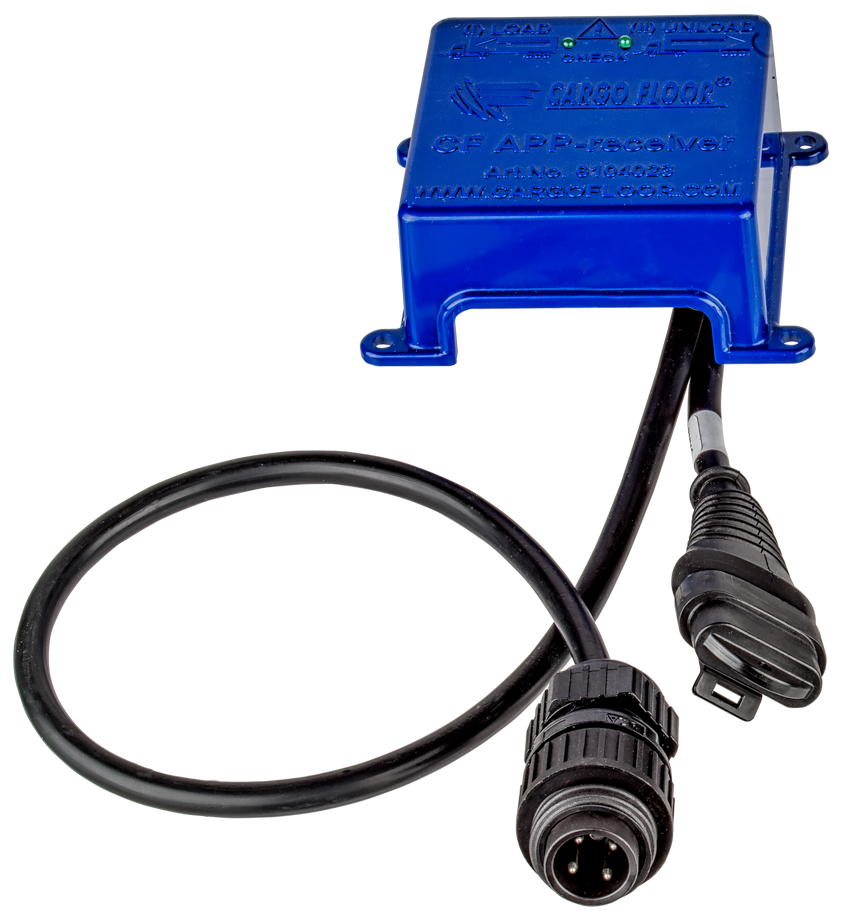
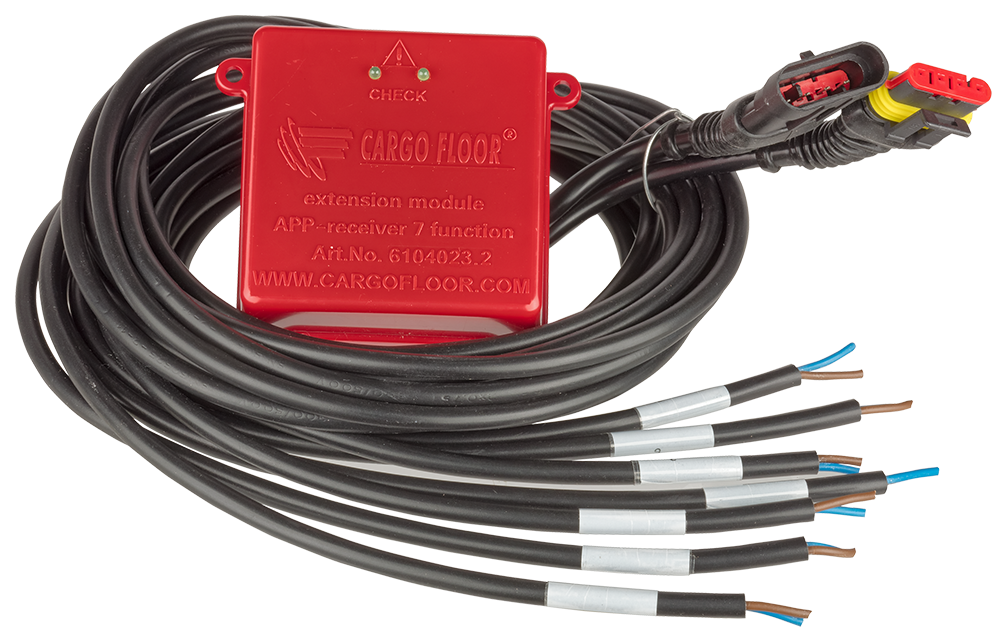
This app will work with these receivers: 

6104048.png

6104049.png

6103037

6104023.png

6104023.2


WARNINGS!

Please read the introduction note at first installation carefully. 

The system will shut off when the bleutooth connection gets lost.

When in the proximity of multiple Cargo Floor systems and starting the app, double-check if you are connected to the system you intend to operate. The app will automatically connect to a receiver it remembers. 

Step 1

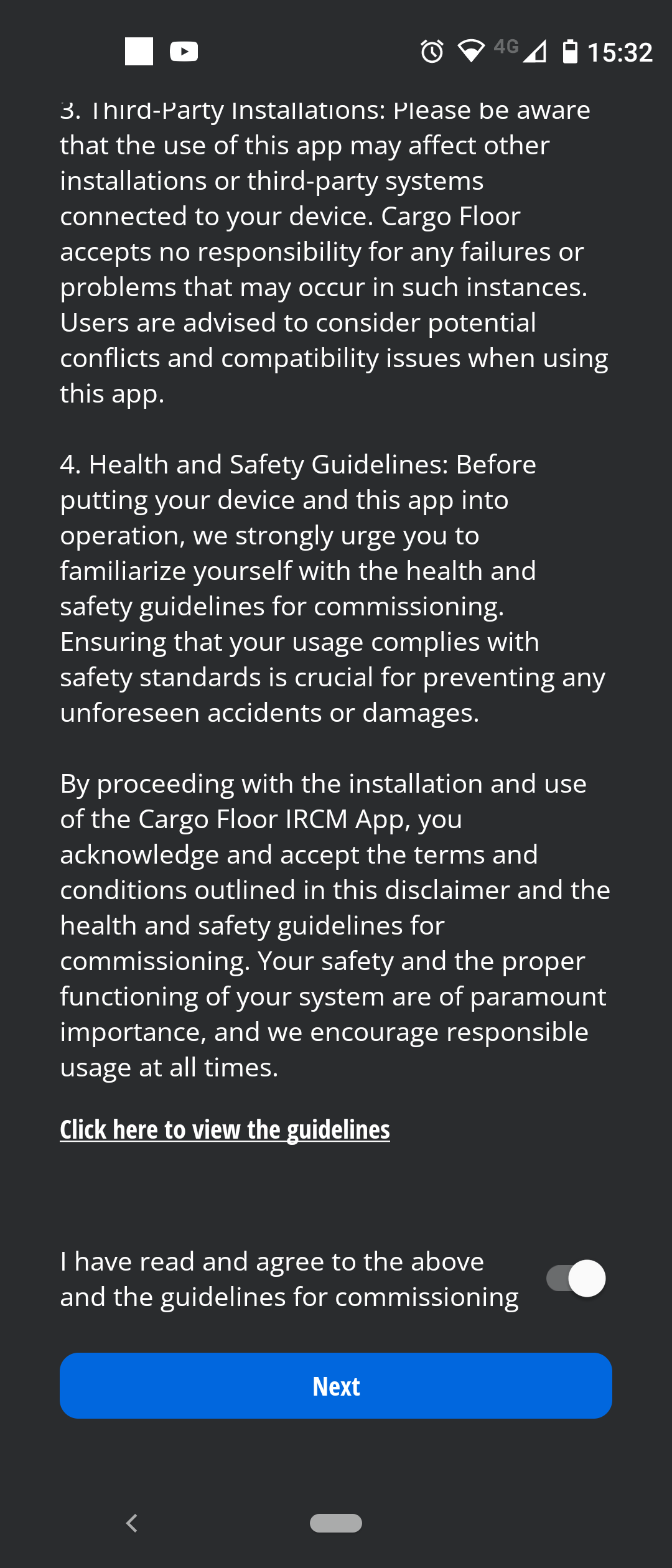
Screen Welcome

dear client

Move the "I have read and agree"  slider and press next.
If you "click here to download" you can download the guidelines, they will open in a new screen. 
 

Step 2

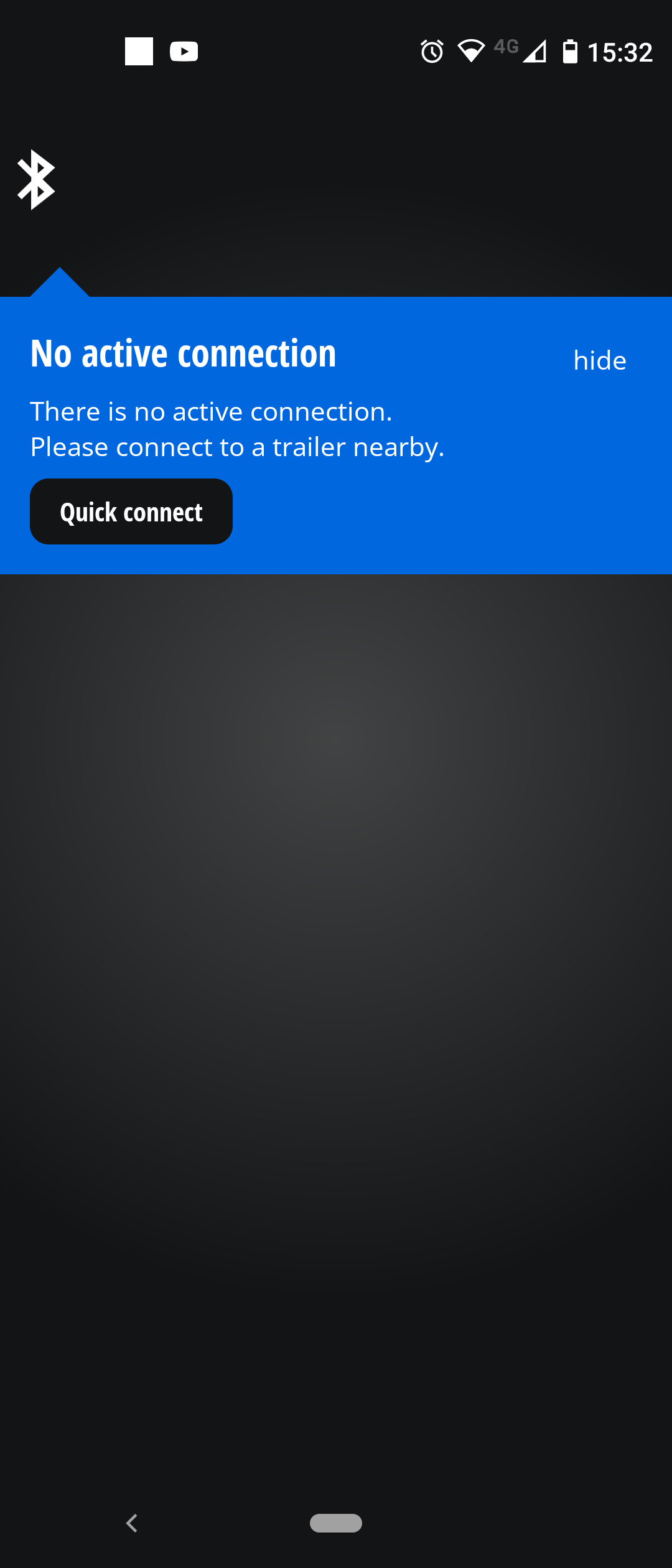
Screen No active connection

03 Cargo Floor APP.png

Press "quick connect", you need to allow location and bleutooth needs to be on. 

Step 3

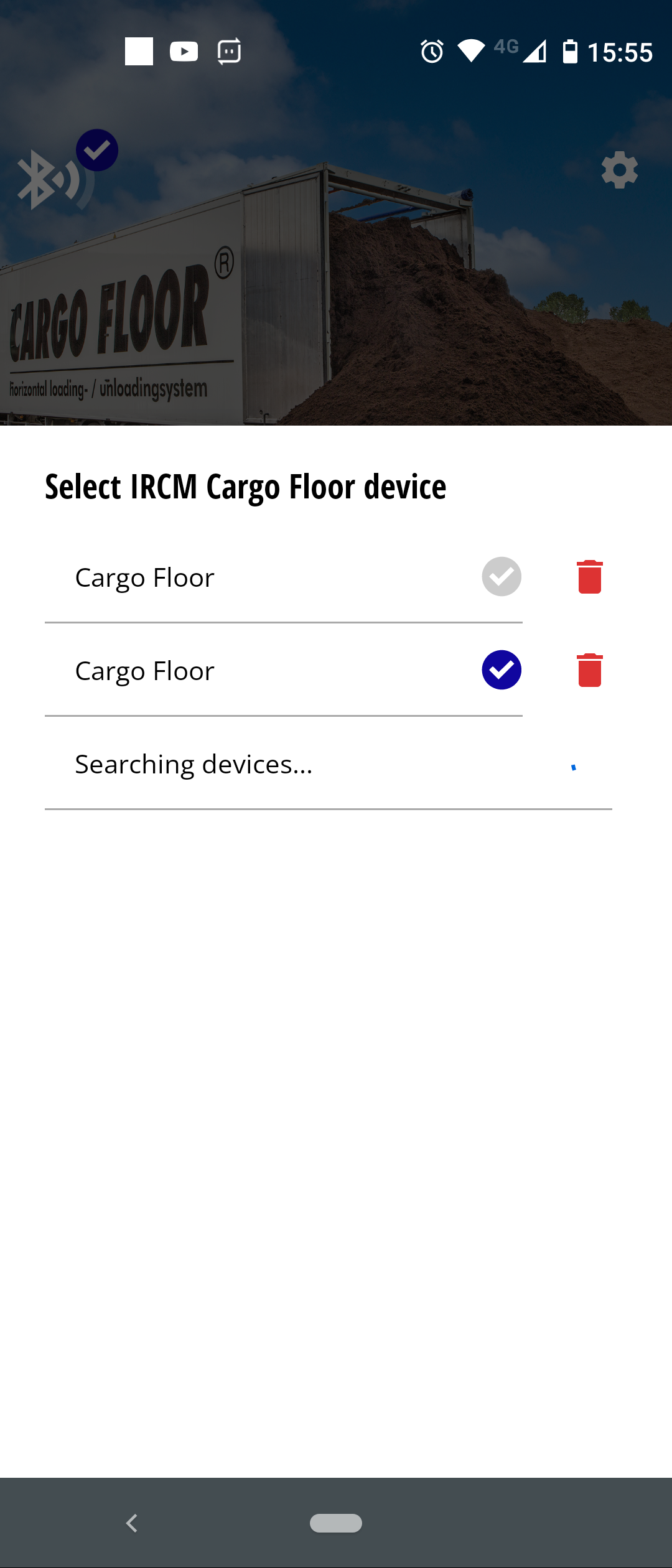
Screen Select IRCM

03-1 Cargo Floor App

The pop up "Select IRCM" will tell you which Cargo Floor recievers are near. Untill you rename them in the app they will be named "Cargo Floor".

Step 4

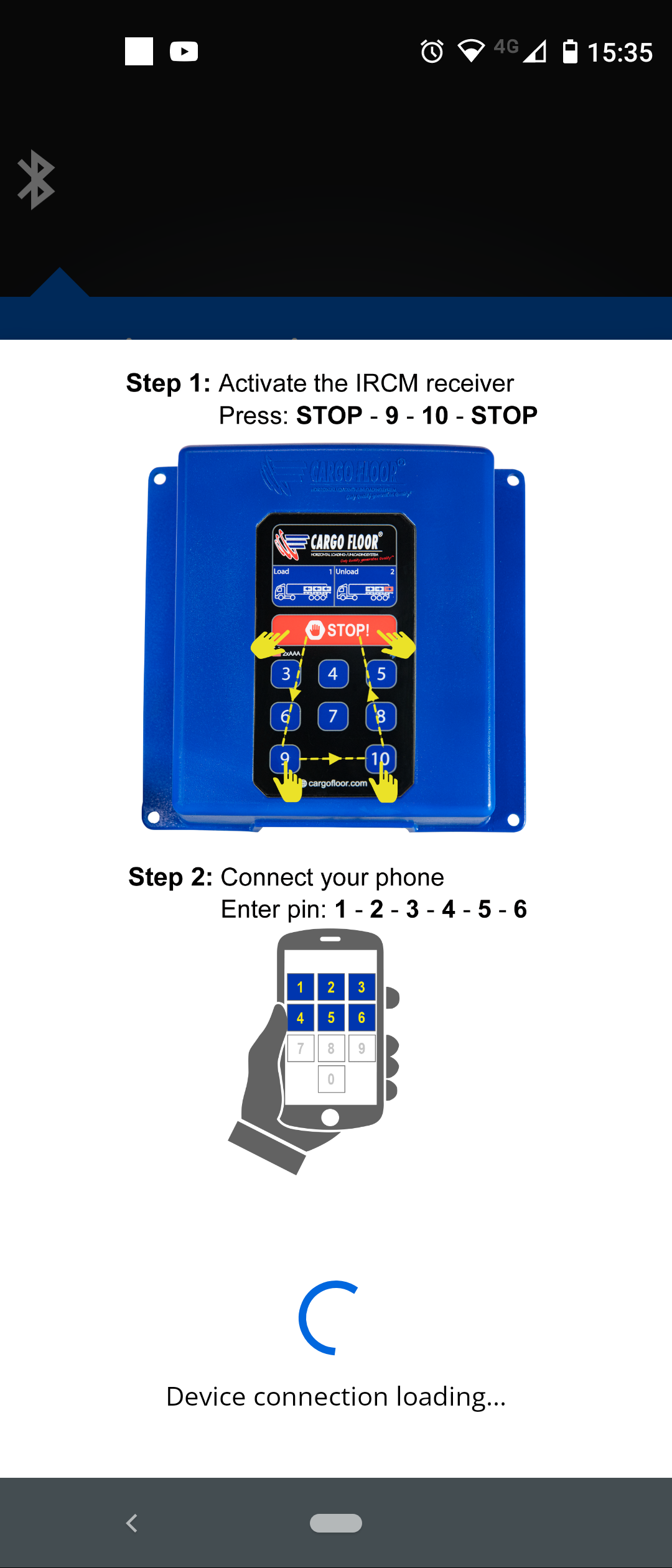
Screen "Activate IRCM reciever"

11 Cargo Floor APP.png

Pop up with the next steps you need to take will appear.

Step 5

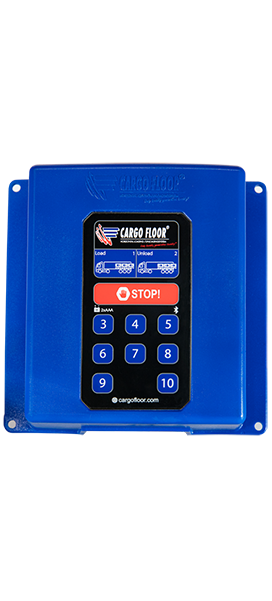
Receiver

receiver


ATTENTION!
Press on the receiver:
STOP 9 10 STOP.
The bleutooth icon will start blinking faster and on your phone the pop up for the pincode will appear, enter 123456 and press ok. 

Step 6

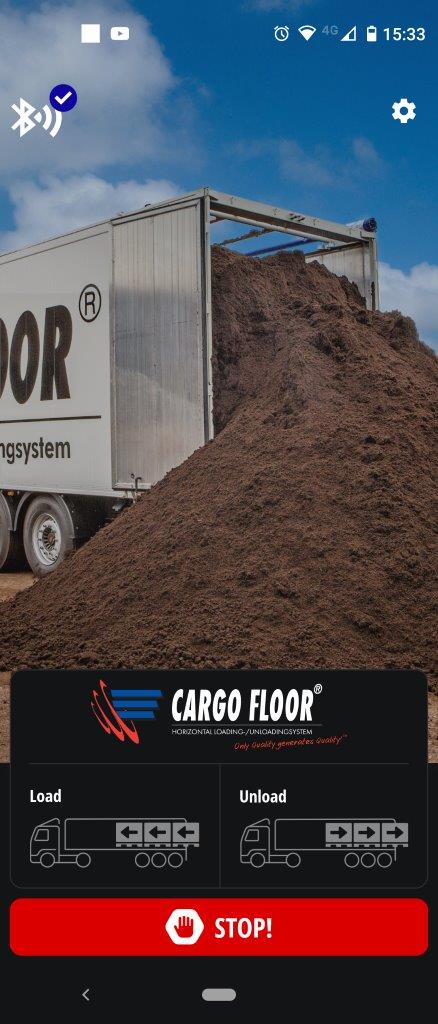
Screen "Cargo Floor"

05 Cargo Floor APP VK.jpg

After succesfull connection you will get the control screen in accordance to your receiver.
The blue box has 3 functions: load - Unload and STOP!
The bleu combined with a red box wil have 10 functions: load - Unload - STOP! and 3 to 10 extra functions.

Customizing 3F

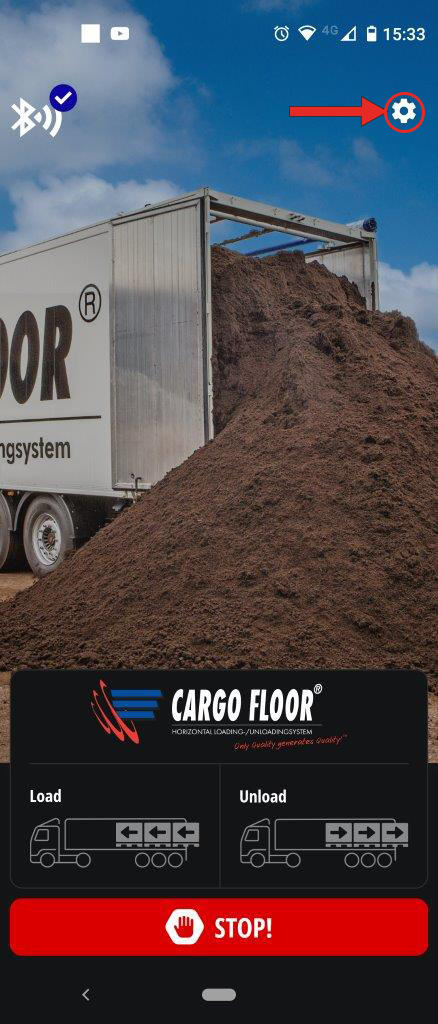
Gear icon, top right of screen

05 Cargo Floor APP VK pijl.png

Top right you will find the settings gear, with which you can customize your screen, like adding your own photo and giving the receiver a name you like


Customizing 10F

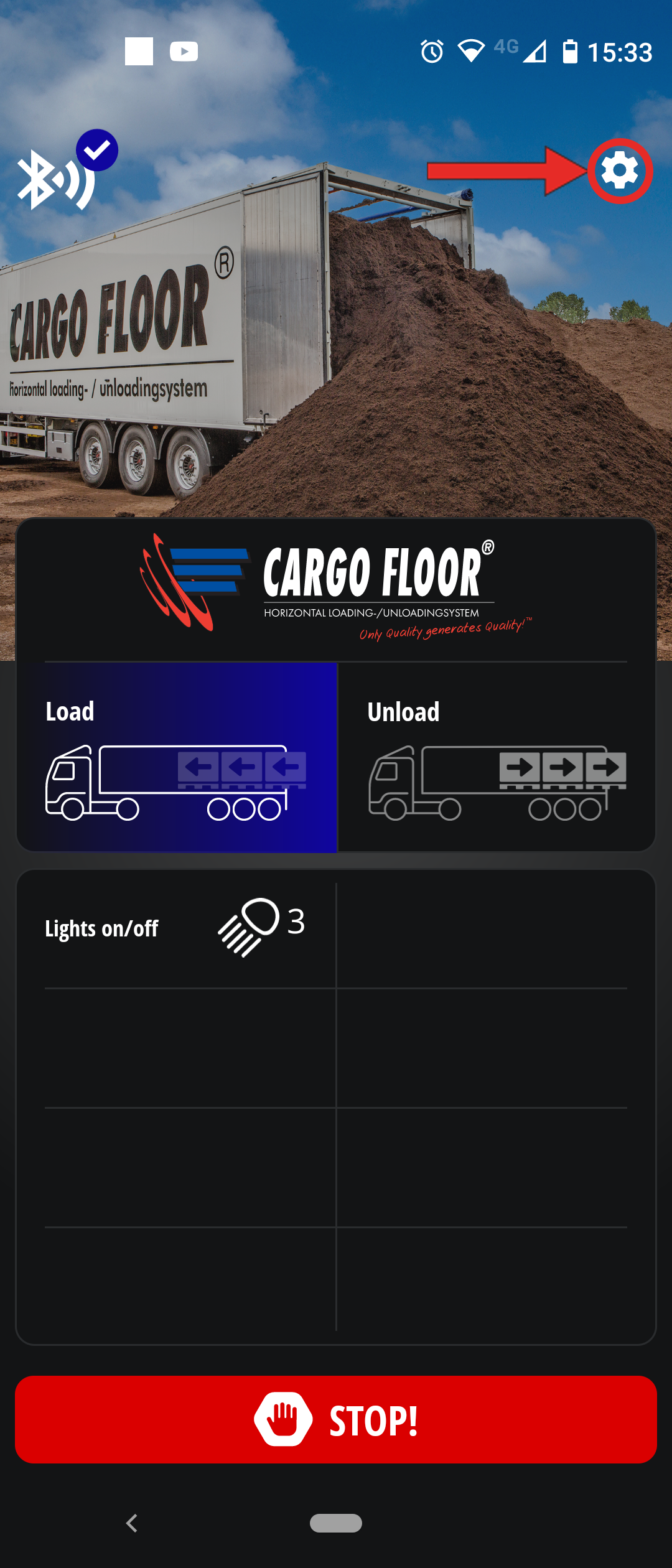
Gear icon, top right of screen

07 Cargo Floor APP pijl (2).png

If you have a 10 function remote control you can add the functions you have to the buttons.

Customizing 10F

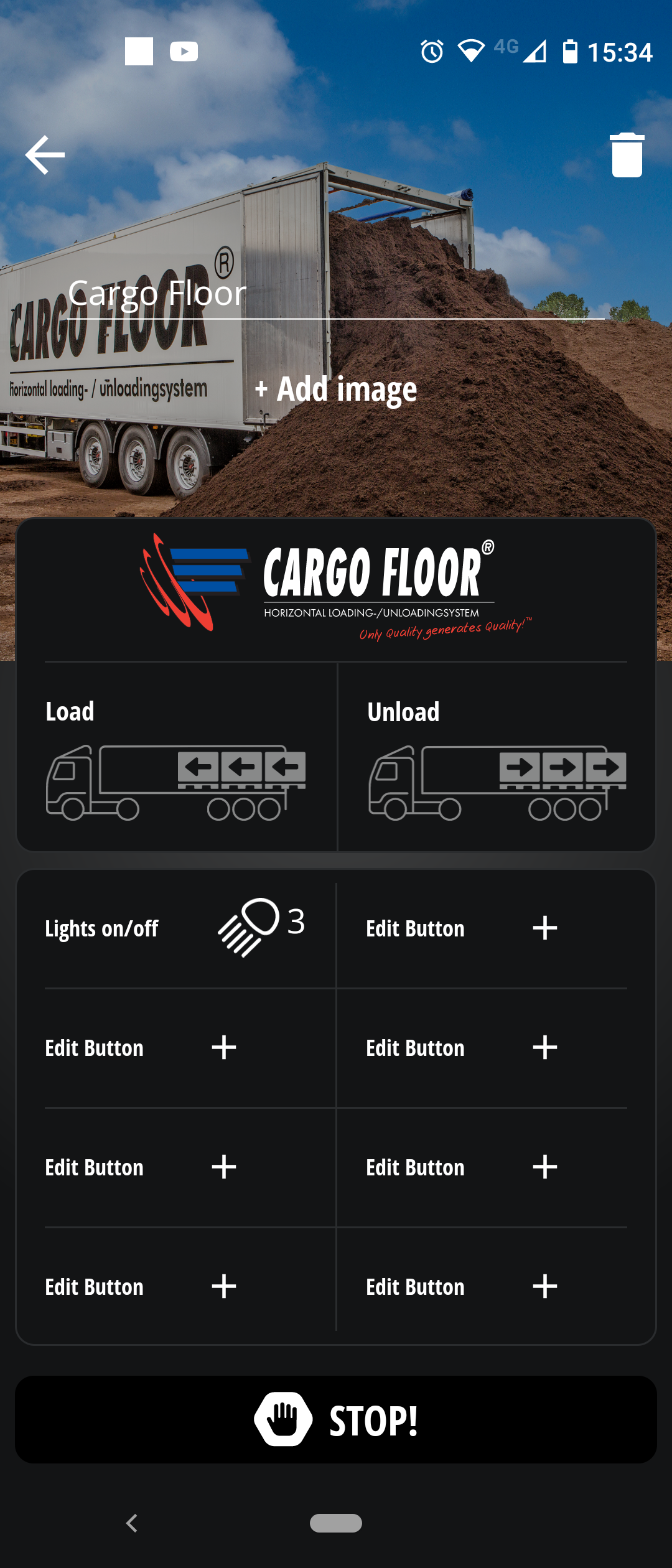
10 functions: buttons 3 to 10

08 Cargo Floor APP.png

Pick a button to edit.

Customizing 10F

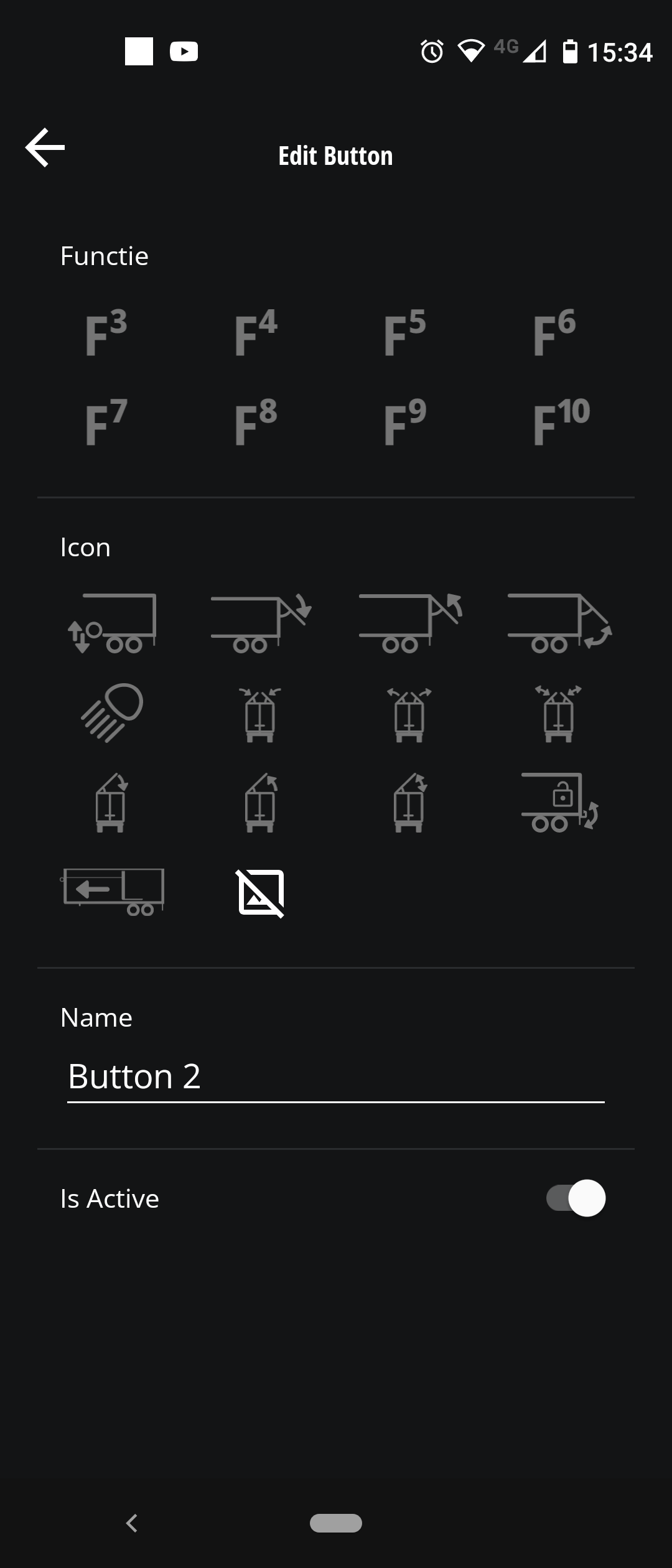
Edit button

09 Cargo Floor APP.png

Function = which number/cable is the funtion on?
Icon  = select a icon (the last icon means no icon, so no picture)
Name = rename it if you want. 

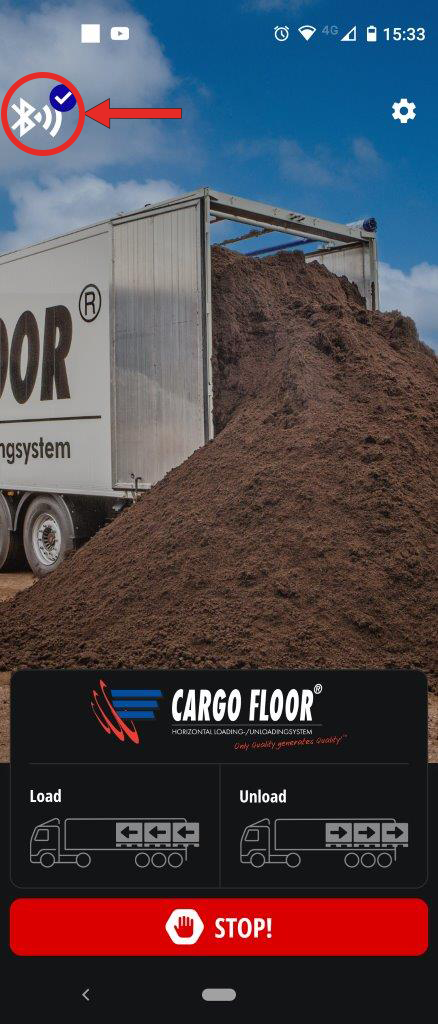
Bleutooth icon

Switch between receivers

05 Cargo Floor APP VK Bleutooth.png

If you have connected to multiple recievers and those are near you can switch between them using the bleutooth icon top left.